What to Do When Your Tcl Roku TV Shows a Blinking White Light and Black Screen Problem
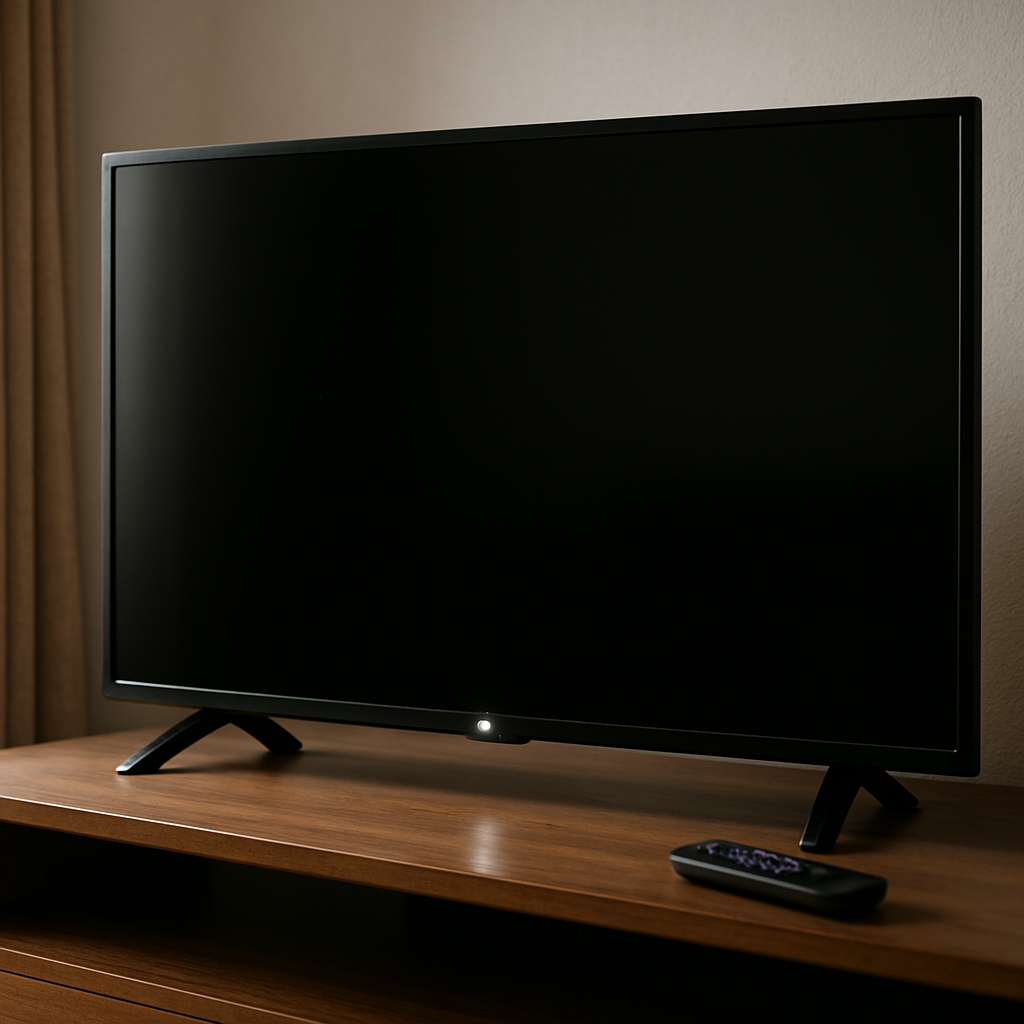
Understanding the Blinking White Light and Black Screen on TCL Roku TVs
If your TCL Roku TV suddenly displays a blinking white light and a persistent black screen, you are not alone. This combination often signals an underlying issue with smart TV hardware, firmware, or connectivity, which may affect models after an update or even on brand new units. Fortunately, by following clear troubleshooting steps, you can usually resolve this frustrating problem at home without professional help. Below, you'll find the most effective ways to diagnose and fix the blinking or flashing indicator light when your TV screen is black but the power light is active.
Check Power and TV Connections First
Begin your diagnostics by confirming the TV's basic connections and power sources. Unplug the TCL Roku TV from its current wall outlet and try a different one to rule out a faulty outlet. The status light at the bottom of the TV is your first clue: a solid or blinking light means the TV is receiving power, while no light at all indicates it is off or the power supply is interrupted.
Carefully inspect the HDMI and coaxial cables for damage or looseness. If you notice fraying or bent connectors, replace them to avoid disruption of the TV's signal. Sometimes, incompatible or faulty external devices can also cause the TV to remain stuck on a black screen, so disconnect everything except power and try again.
If issues persist with the light still flashing, see the manufacturer's status guide. TCL offers a useful article explaining status light meanings for their Roku models that may help clarify what the blinking pattern indicates for your specific TV.
For TVs turning on to a logo and instantly going black or staying on a blue screen, it could also point to a more serious hardware problem, like a failed component after a firmware update.
Wake the Screen from Standby or Sleep Mode
Roku TVs are equipped with a feature that automatically turns off the display after long periods of inactivity, leaving only the status light blinking or on. If your TCL TV is black but you still hear sound, grab your Roku remote and press the Home button. This action wakes the TV from its blank, black, or screen saver mode and restores the picture.
Should this solve your issue, consider modifying your power settings (usually under Settings > System > Power) to prevent your TCL Roku TV from entering standby mode unexpectedly. This can be particularly important if your TV often sits idle and you want to avoid recurring black screens after a few minutes or hours.
Firmware changes or settings resets can, on occasion, affect sleep timer configurations causing the TV to display a blank or frozen logo screen, so double-check these options after any recent software updates.
Power Cycle and Reset Your Roku TV
A classic power cycle remains one of the most effective troubleshooting tools for blinking lights and display issues in smart TVs. Start by unplugging the power cord from the TV and leaving it disconnected for at least 30 seconds. Then plug it back in, and press the power button. Wait a minute to see if the TV returns to its normal operation—this step often resolves situations where the TV is stuck in a boot loop, frozen on a logo, or displaying just a white or black screen.
If restarting the TV did not help, explore performing a full factory reset. Use the small reset button (usually located on the back or underside of the TV) and follow instructions from either your user manual or the manufacturer's support page. The Asurion guide for black screen fixes provides step-by-step details for a proper reset sequence, especially after a system update or failed boot.
Remember: a hard reset will erase your saved WiFi settings, Roku apps, display language, and personalizations, so only use this option if other troubleshooting steps have failed.
Troubleshoot Backlight and Display Panel Failures
If you continue seeing the blinking white light but no picture appears on your TCL Roku TV, it could be a failed LED backlight or display panel—an increasingly common problem, especially with larger Roku models and after batch updates. To rule this out, take a flashlight and, with the TV powered on and the screen black, shine it at an angle across the display. Faint shadows, shapes, or menu silhouettes mean the backlight has failed, while no image at all could point to the main board or T-Con board failure.
Users on technical forums, such as iFixit, report that a simple main board swap can resolve constant flashing or a stuck-on-blue-screen—though sometimes replacing the backlight strips themselves is required. Replacement parts are available online, but performing this repair typically voids any active warranty. If the TV is brand new or under warranty, contact TCL support for further troubleshooting and possible replacement.
Always disconnect power completely before opening up your TV case or handling any internal boards, and photograph cable layouts to help when reassembling. Be aware that DIY repairs on signal boards, backlight strips, or the main board do carry some risk if not performed with care.
Advanced Solutions for Persistent Issues
If your TCL Roku TV remains non-responsive after all previous attempts—such as after loading the initial boot logo, or if it repeats flashing red or white lights without display—the problem may lie within the core board electronics or require professional service. Occasionally, an update may corrupt system firmware, preventing the set from properly loading apps, mirroring input, or activating language/saver features.
Attempt HDMI input cycling by trying different HDMI ports, unplugging external streaming sticks or Apple TV devices, and switching to other display sources like Fire Stick or Vizio if available. If your TV is stuck on a blank reset logo, or will not show anything but flashes briefly then shuts off, call TCL authorized service or submit a support request through their website.
Some signal and display faults—particularly those that cause the TV to freeze, stay on the boot screen, or never load—cannot be fixed by end users unless a full firmware reflash is performed by a service technician. Always retain proof of purchase for warranty claims and be ready to describe exactly when the flashing started, whether after activation, loading YouTube, or updating to a newer smart TV platform.
By methodically working through these steps, from simple power checks to advanced main board inspection, you give yourself the best chance to restore your TCL Roku TV to full working order. Never overlook small details like standby light codes or smart app resets while troubleshooting, as they often contain clues about the underlying root cause.
For further detail or step-by-step screenshots for every problem discussed, consult the manufacturer at their official support page or use the comprehensive television repair resources provided by expert troubleshooting sites online.
If you follow these methods, most TCL Roku TV black screen and blinking white light problems—whether triggered by updates, mirroring not working, or frozen logos—can be corrected at home and your favorite content resumed.


Comments
Post a Comment