Netflix Not Loading On Vizio Tv? Fix NW-4-8 Error Code, App Won't Open, or Black Screen Issues
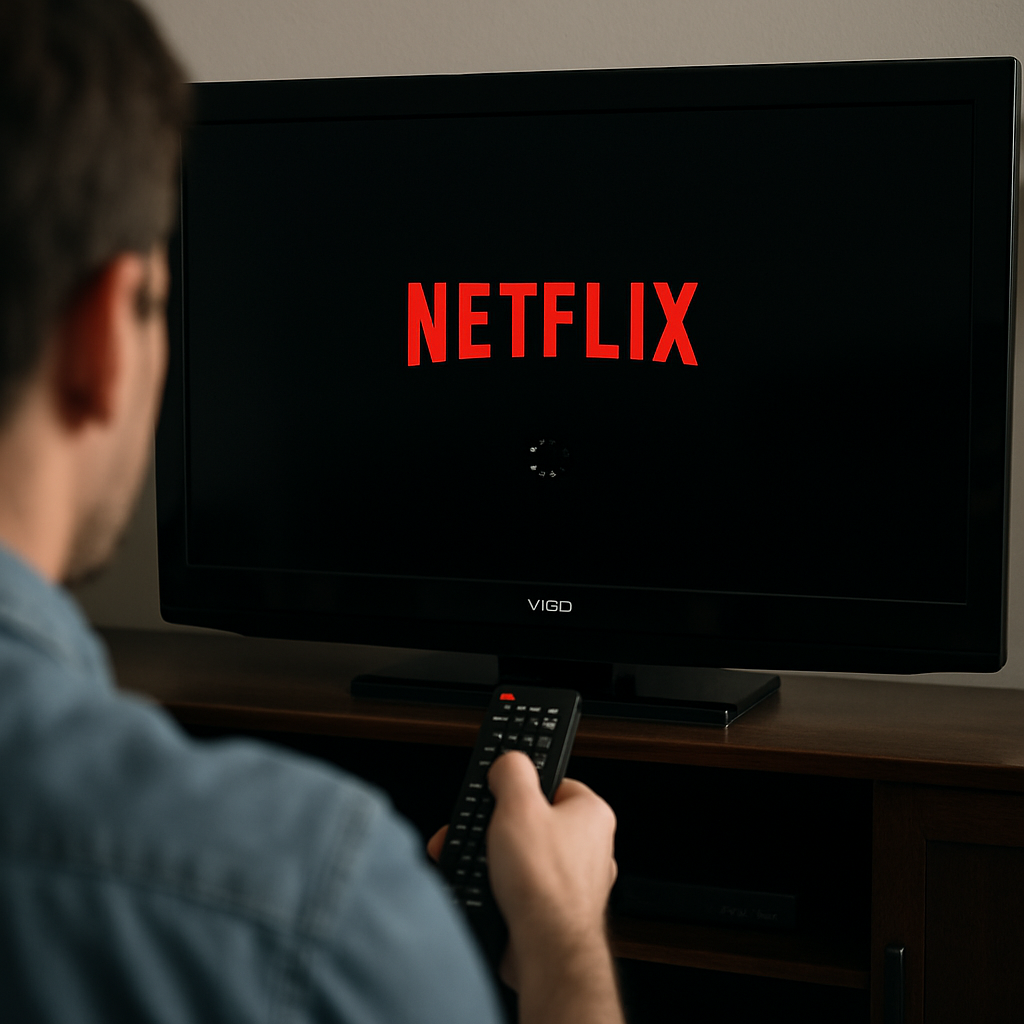
Why Netflix Won't Load on Your Vizio TV and How to Fix It Fast
If Netflix is not loading on your Vizio TV, or you're encountering error code NW-4-8, you're not alone. This issue typically signals a network connectivity problem that prevents the Netflix app from connecting. Most users see symptoms like the app refusing to open, a persistent black screen, or repeated NW-4-8 error messages. Fortunately, resolving these issues often involves straightforward steps you can try at home right away.
The fastest solution is usually to restart both your Vizio TV and your home network equipment, such as your router and modem. If the Netflix app still isn't working, there are specific troubleshooting steps you can follow to pinpoint and resolve the underlying problem. Let's explore the targeted techniques that address NW-4-8 errors and related symptoms on Vizio TVs.
Understanding NW-4-8 and Connectivity Problems
The NW-4-8 error on Vizio TVs indicates a network issue between your TV and Netflix's servers. You'll usually see a message like "Couldn't connect to Netflix. Please try again or restart your home network and streaming device." This often happens when the TV's network settings get corrupted or when the app cannot reach Netflix services due to Wi-Fi or firmware issues.
Some users report similar problems with other error codes, such as NW-1-19 or NW-3-6, but NW-4-8 remains one of the most persistent on Vizio TVs. Visit the Netflix Help Center for a detailed explanation of these network errors and their causes.
Status indicators include endless loading screens, a black screen after starting Netflix, or error pop-ups that reference connectivity failures. Understanding the root of the NW-4-8 error can guide your next troubleshooting steps.
Sometimes, unsupported device firmware or outdated Netflix app versions can also prompt this error, especially on smart TV models like Vizio, LG, and Samsung.
Restarting and Power Cycling: Your First Step
Before trying advanced options, power cycling your devices is the single most effective fix for Netflix not loading on a Vizio TV. To complete a full power cycle:
- Turn off your Vizio TV and unplug it from the wall for at least one minute.
- Unplug your router and modem from power for about 60 seconds, then plug them back in and wait for full restart.
- Reconnect your Vizio TV to power. Turn it on and open the Netflix app again to test if the issue has cleared.
Many smart TV owners, including those using devices like Fire Stick, Roku, or Apple TV, find that a simple reboot is enough to get Netflix working again. If these steps don't resolve NW-4-8, proceed with the advanced techniques below.
This power-reset advice is echoed in expert forums such as JustAnswer, where TV repair specialists recommend it as the essential first fix.
Network Settings and Wi-Fi Troubleshooting
Unstable Wi-Fi or incorrect network settings are top triggers for NW-4-8 errors on smart TVs. To improve your network connection:
- Verify that your TV is connected to the correct Wi-Fi network. Navigate to Network Settings and confirm connection details.
- Consider switching from Wi-Fi to a wired Ethernet connection if possible. Wired connections deliver more stable streaming.
- Move your router closer to your TV to strengthen the signal, or reduce interference from other electronics.
If your network speed is slow or intermittent, contact your ISP for assistance. Additionally, double-check that other streaming apps, like Plex or YouTube, are working on your Vizio TV. If they are, the problem is likely with Netflix itself or its app version.
These fixes address situations where the Netflix app may open but is stuck loading, black screen issues appear, or the error NW-4-8 keeps recurring even after rebooting.
Check for Outdated Netflix App or Unsupported Software
Some Vizio TVs, especially older models or series 7 units, may not support the latest Netflix updates or app requirements. Netflix periodically retires support for outdated software versions, leading to persistent NW-4-8 errors.
Follow these steps to check your app and device support:
- While on the NW-4-8 error screen, select More Details > Device to see your SDK or Platform version. Refer to the Netflix support page for guidance.
- If your TV shows a Netflix SDK version of 4.1.5 or below, your model is no longer compatible with the service. Unfortunately, you will need to use another supported streaming device, like a Roku, Chromecast, or Fire Stick, to access Netflix.
- If your software is up to date, proceed with app-level troubleshooting such as signing out and reinstalling the app.
Always update your TV's firmware when prompted. Outdated firmware can leave both the TV and its built-in apps unable to communicate with Netflix servers reliably.
Other brands—such as LG, Sony, TCL, Panasonic, Samsung, Sharp, and JVC—experience similar issues with unsupported app versions, but the steps to check compatibility remain nearly the same.
Reinstalling Netflix and Additional App Solutions
If your device and network check out but the app still fails, reinstalling Netflix can flush out corrupted cache files or misconfigured data that cause persistent loading problems or black screens on Vizio TVs.
To reinstall Netflix, find the app on your TV's main menu, remove or uninstall it, restart your TV, and then re-download Netflix from the app store. When you reinstall, you'll be prompted to log in again with your account details.
As a workaround, you can also sign out of Netflix without uninstalling. Use the remote-control code: Up, Up, Down, Down, Left, Right, Left, Right, Up, Up, Up, Up, then select Sign Out or Reset.
Some users report that even after these steps, Netflix may not load due to regional issues or server-side problems. If all else fails, try logging in on another device to determine whether Netflix is working on your account in general. Occasionally, Netflix goes down for brief periods, affecting all smart TV models.
Persistent issues on Vizio TVs suggest a deeper compatibility or hardware problem. In that case, alternate streaming methods—such as connecting a Fire Stick or Roku player—or seeking support from Vizio customer service, may provide a solution.
By methodically following these troubleshooting steps, most NW-4-8 errors and Netflix app loading problems on Vizio TVs can be resolved without advanced technical support.


Comments
Post a Comment