TCL Roku TV Black Screen Troubleshooting: Why Logo Appears Then Screen Goes Dark
Overview: Quick Answer to the Blackout Issue
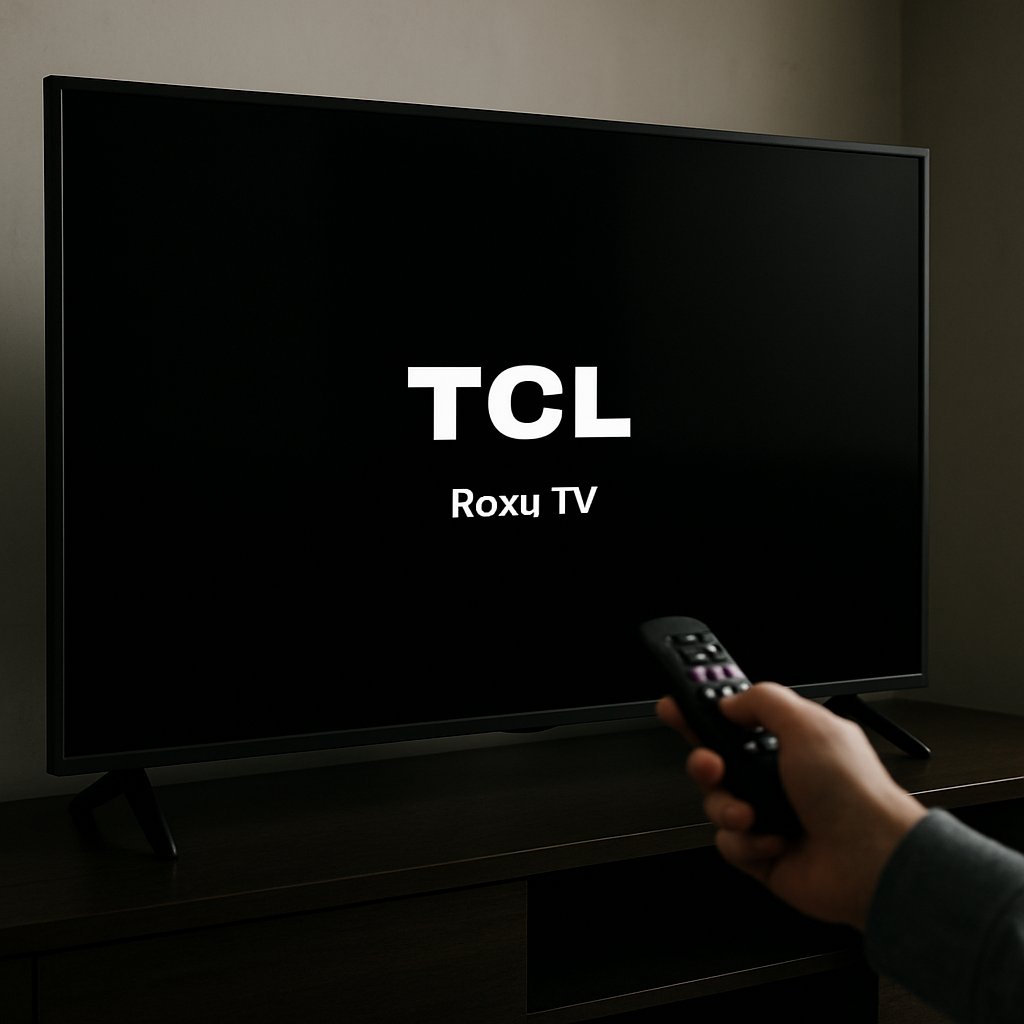
If your TCL Roku TV briefly displays its logo when powering on and then immediately goes to a black screen, you are likely experiencing a hardware issue, most commonly a failure in the backlight system. This problem remains one of the most frequent causes of sudden screen blackout in TCL Roku TVs, as confirmed by user reports and troubleshooting guides such as those found on iFixit. Below, we explain exactly how to confirm the cause and what steps to take to diagnose and potentially fix this problem.
Identifying Whether the TV Backlight Has Failed
The first step in diagnosing a TCL Roku TV that shows the logo and then blacks out is distinguishing a failed backlight from other issues. One popular test is to use a flashlight in a dark room, shining it at an angle against the TV screen after it goes black.
If you observe faint images or silhouettes in the light, your panel is working and the TV's backlights have failed. On the other hand, if nothing is visible—even under direct light—there could be a deeper issue involving the main board or power supply.
Backlight failures are a well-documented problem with TCL TVs. Do not confuse standard content aspect ratio black bars or audio-guide features with this type of screen blackout issue; this is a hardware problem, not a settings glitch. For more settings-related questions, refer to official TCL common questions.
Inspecting the Power Board and LED Backlight Connections
If you have identified that your display is still active behind a black screen, the next phase is to examine the TV's internal components, specifically focusing on the power board and the connections to the LED backlight array.
Before opening your TV, ensure it is unplugged and placed face down on a soft surface. Remove the back cover, which exposes the circuit boards and connectors. Locate the power supply board and visually inspect for signs of damage, such as burned areas, bulging capacitors, or disconnected cables.
Be methodical and take photos of your TV's internals before disconnecting anything. Uploading these pictures to communities like iFixit will help others guide you step by step through the troubleshooting process.
Measuring and Testing Output Voltages Safely
With the back cover removed, you must check the voltages delivered from the power supply board. Use a reliable multimeter and consult your TV's repair manual or pinout labels directly on the board to identify the correct test points.
Measure the outputs to both the main board and the backlight LED connectors. Compare your readings against expected values (often labeled on the board). Attention to proper safety precautions is crucial here, since TV power boards retain dangerous voltages, even when unplugged recently.
Record your measurements. Unusual readings—whether zero, fluctuating, or much lower than specified—can indicate if your issue lies with the power board or with the LED strips themselves.
If you detect normal voltages to the mainboard but low or fluctuating readings to the backlight connectors, the next logical step is to examine the backlight strips and wiring.
Evaluating the TV's Backlight Array Components
When your measurements point to the backlight as the source of failure, you will need to further disassemble the TV to access and inspect the LED strips. Be cautious: this level of repair can be challenging, as the layers behind your screen are delicate and sensitive to static or accidental bending.
Visually inspect each backlight LED strip for burnt-out LEDs, dark spots, or broken components. If even one LED on a strip is damaged, it can cause the entire array to fail and create the sudden blackout after the logo appears. Replacement LED strips for TCL TVs are widely available online.
Reconnect the backlight arrays and test again before reassembling the TV. If everything checks out, reattach the back cover and restore power.
If the TV still fails after these steps, consider seeking professional service or referring to additional troubleshooting options, as some power-related faults can be more complex and require board-level repair.
When to Seek Further Support or Professional Repair
If, after completing the above troubleshooting steps, your TCL Roku TV continues to exhibit the same power-on and immediate blackout behavior (logo flashes, then screen off), it may be time to involve a professional technician. Persistent failures despite successful voltage and strip testing often indicate mainboard defects or less accessible component faults.
Online support forums such as iFixit can connect you with communities experienced in model-specific issues and component sourcing. For warranty information or further support, consult your manufacturer's service portal.
While tackling a TCL Roku TV black screen can be challenging, following these precise diagnostic steps will give you a comprehensive understanding of the problem and the tools to proceed toward a fix.


Comments
Post a Comment