What to Do When Your Vizio TV Powers On But Black Screen Appears and Red Light Flickers
Understanding the Vizio TV Black Screen Issue and Immediate Steps
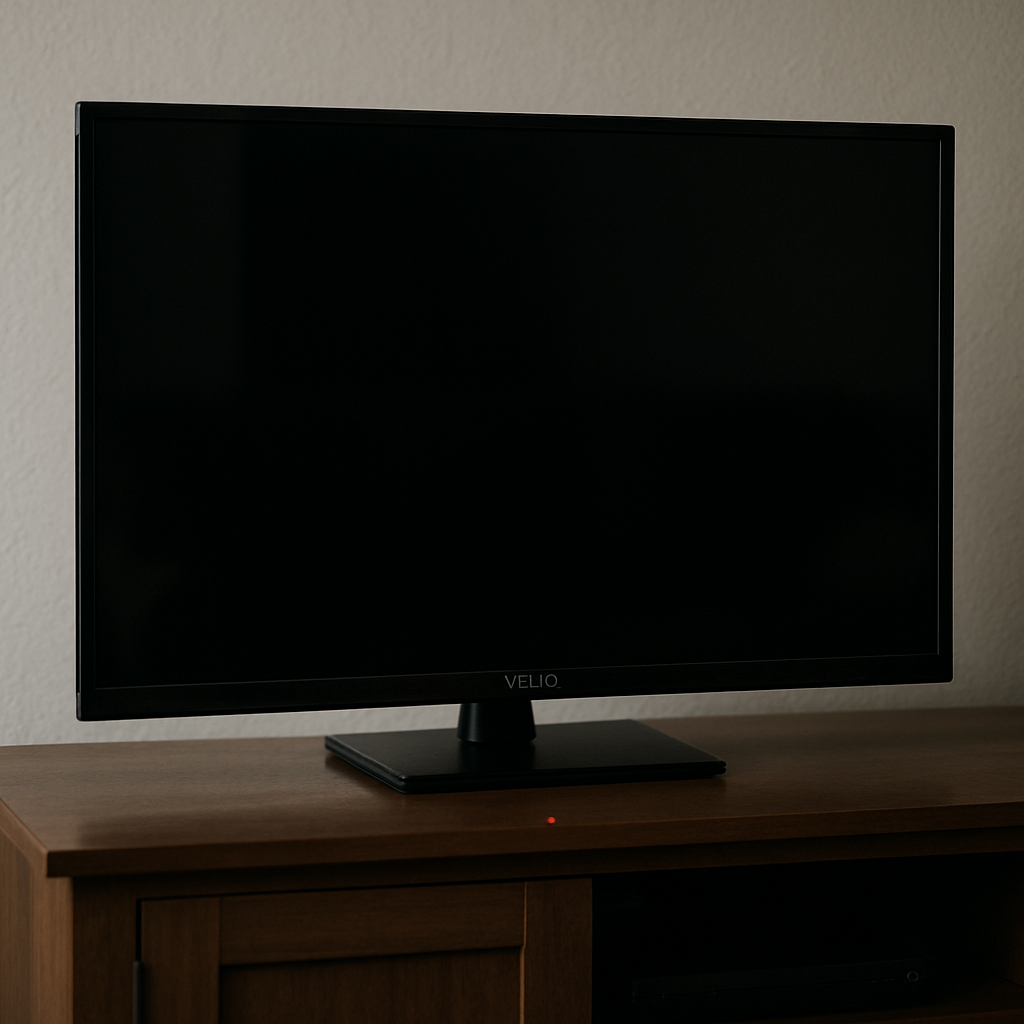
If your Vizio TV powers on but only shows a black screen, sometimes with the red indicator light flickering or showing power, this is a common and frustrating issue for many users. Most frequently, it is referred to online as the "Vizio black screen of death," with many helpful reports and fixes on forums like Reddit. The key solution often involves a combination of hardware checks (like inspecting fuses) and precise reset procedures carried out on the TV itself. Here, we cover the best-practice steps to troubleshoot when your Vizio turns on but won't display a picture, sometimes accompanied by flickering lights, loading delays, or frozen startup screens.
Power Cycle and Hard Reset for Black Screen Symptoms
Start by performing a hard reset, which can resolve temporary glitches causing a black screen or no signal. Unplug your Vizio TV entirely from the wall and wait at least 60 seconds to ensure all residual power is drained. While unplugged, hold down the "Power" button on the TV for about 30 seconds to fully reset the circuitry. Plug the set back in and turn it on to check if the black screen of death persists.
If your TV just shows a frozen logo or the indicator light blinks, this process might still work, since it's recommended by the manufacturer and has helped resolve many cases outlined by users in discussions and visual guides, such as this helpful YouTube tutorial.
Some Vizio models (like the d55u-d1 or v585 h11) might need this done more than once if there's a persistent issue. Make sure to use original power cables and wall sockets during tests.
This simple fix often restores normal function, especially if the black screen is caused by a momentary system hang or power surge.
Factory Reset Using Hardware Buttons on Your Vizio
If a power cycle doesn't work, attempt a manual factory reset using your TV's built-in hardware buttons—essential when the standard display menu doesn't appear or if the TV will not turn on fully. Locate the "Volume Down" and "Input/Menu" buttons (check near the side or bottom of your screen, varies by model).
With the TV powered on (even if the screen is black but the power light is on), press and hold both buttons down at the same time. After about 10–15 seconds, the TV may flash, blink the power light, or display a reset prompt. Release the buttons when prompted and wait for the TV to complete its reset cycle; this may take several minutes.
This process was directly shared by users who fixed issues like screen flickering, frozen boot, and audio problems through Reddit troubleshooting guides.
Checking Fuses and Internal Cables for Persistent Black Screens
When hardware resets do not fix the problem and the black screen remains, there may be an internal fault, often a burnt or blown fuse. Unplug your Vizio and carefully remove the TV's back panel using appropriate tools. Check for obvious signs of damage, such as burnt smells, blackened areas near the fuses, or loose ribbons on the board.
If you spot a blown fuse, these can often be replaced with an exact-match fuse from an electronics store. Be sure to match voltage and amperage (commonly found on models like d65u d2 or d40f g9). Only attempt this if you are comfortable with small electronics. If not, consult a professional.
Double-check that all internal cable connections (especially the ribbon cables connecting the display to the main board) are secure. A loose cable can mimic a failed screen, leading to confusion when troubleshooting frozen or non-loading screens.
After checking, reassemble and reconnect the power. If the TV starts normally, the fuse or cable was your problem. If not, the display panel itself may have failed or require advanced repair.
When Sound Works but No Picture: Diagnosing Audio vs. Video Failures
In many cases, your Vizio TV may produce sound (audio from menus or startup) but shows only a blank black screen. This can mean the backlight has failed, the T-Con board is faulty, or a video signal path is broken. To test, shine a flashlight very closely on the screen while powered on. If you can faintly see menu outlines or the Vizio logo, your backlight is likely the problem, which is a repairable part.
Some users report hearing startup sounds or remote feedback but see no image. For models like m50-c1 or d50u-d1, this indicates either a failed backlight array or a board-level malfunction.
Try changing HDMI cables or switching to a different input to rule out source issues (like AirPlay or external devices). If the TV says "No Signal" or blinks the input light but doesn't display menus, the input board or T-Con board should be inspected.
Note if your TV flickers, then goes black after a few seconds, it may be in "protection mode" due to a brief overload or failure. In such cases, a hard reset and fuse inspection generally bring the TV back to working order.
If you still experience issues with audio but no video, professional repair advice is recommended for component-level diagnostics.
Advanced Troubleshooting: Signal, Board, and Model-Specific Steps
Different Vizio models may require individualized troubleshooting. For sets like the e550i-b2, d32h-f0, or the loading quest 2 generation models, pay attention to distinct error behaviors: does the set freeze on startup, flicker and then show a black screen, or fail after using AirPlay? Each hint can point to a unique fix.
- If the power indicator is blinking or turns red briefly and then off, check the power supply board closely.
- On some units, repeatedly cycling the power (unplug for five minutes) can clear stuck system states caused by failed updates or signal mismatches.
- If the TV is stuck on the home loading screen or will not turn off with the remote, the main board may have failed and need replacement.
Factory resets (including holding down the on-set menu buttons) consistently restore function for common models, as proven by user accounts and guidance on official help pages such as Vizio Support. Always ensure your firmware is up to date via an online connection whenever possible after troubleshooting hardware concerns.
If your Vizio TV still keeps going black despite these steps, further service may be required. Persistently blank screens after following these troubleshooting processes most often indicate a part needs replacing or a board-level repair is required. By using these targeted reset, fuse, and board/interconnect solutions, even complex issues like the black screen of death can often be addressed at home without needing a full replacement TV.
Always prioritize safety during DIY repairs and consult experts if uncertain. Carefully follow guides or check official support for your Vizio model for additional tools and solutions if needed.


Comments
Post a Comment