Roku Tv Screen Went Black But Still Has Sound: Quick Fix for TCL, Onn & Streaming Stick Models
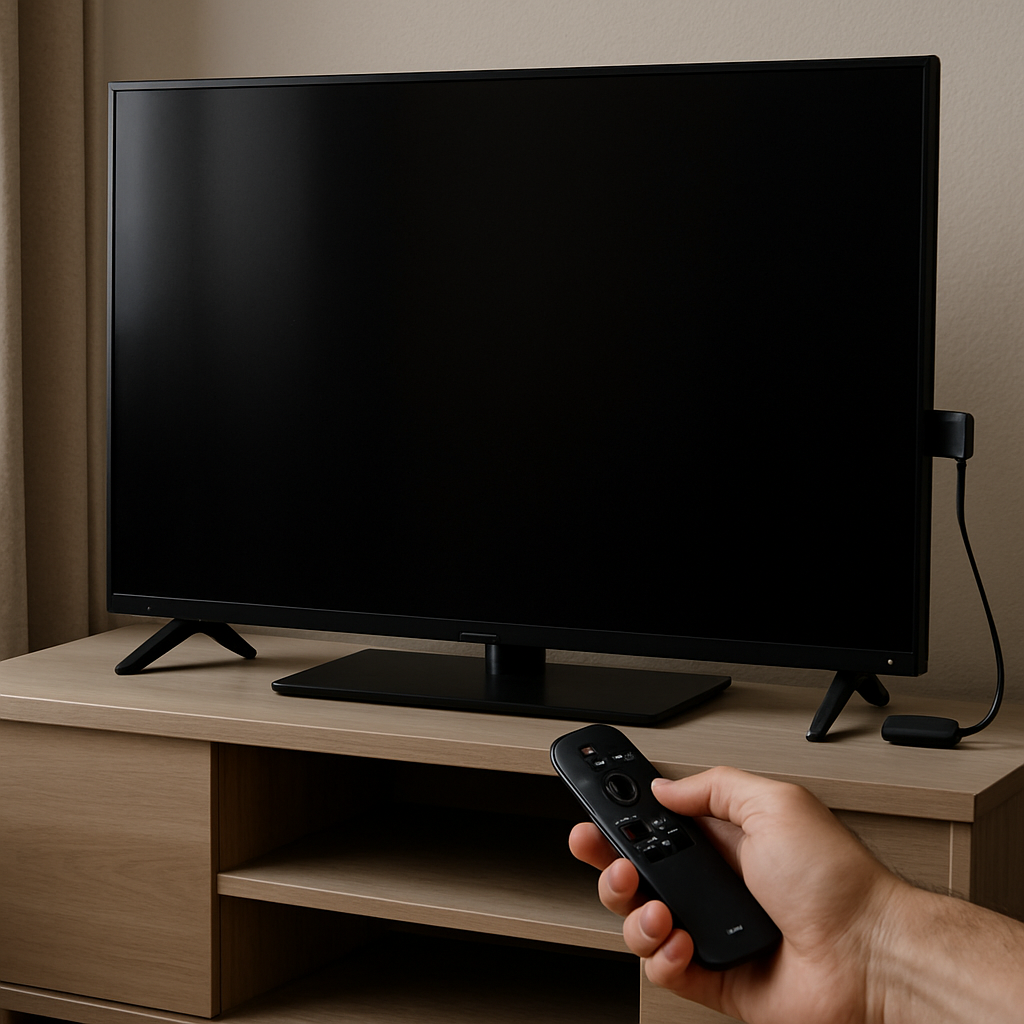
If your Roku TV screen suddenly went black but you can still hear sound, you are not alone—this is a common issue across TCL, Onn, and streaming stick models. The solution usually involves a simple reboot or reset, and the good news is you can often fix the problem without needing the remote. Below, you will find detailed instructions to quickly restore your picture without risking your settings or disrupting your streaming experience. These steps are effective whether your Roku TV is showing a black screen, red light blinking, or you are dealing with no picture during normal operation.
Common Causes of Black Screen Issues
Several factors may cause the screen on a Roku TV to go black while the sound keeps playing. Hardware glitches, temporary power interruptions, or a stuck HDMI handshake are all frequent culprits. Sometimes, software hiccups—especially after firmware updates—can also trigger this exact scenario.
User reports from forums and platforms specializing in Roku TV troubleshooting, such as the official Roku support portal, frequently cite loose cables or faulty power supply as top offenders. If your TV turns on but displays no picture, start your investigation with the most straightforward fixes before considering more involved resets.
Many owners of TCL and Onn Roku TVs have mentioned encountering this issue, particularly after the device has been running for long periods or after recent changes in input sources. Restarting the TV or unplugging it often provides a quick fix, but persistent problems may require a manual reset.
Understanding the specific cause behind the black screen can prevent unnecessary data loss or settings resets while ensuring your favorite channels remain untouched.
Simple Reboot: Restoring Your Roku TV Picture
The fastest and least invasive solution is to perform a soft reboot. This does not affect your apps, accounts, or personal settings, making it ideal for users who simply want to restore their Roku TV screen without consequences.
- Unplug the TV's power cord from the wall and wait at least 30 seconds. This allows any lingering electrical charge to dissipate, helping clear out temporary glitches that may be causing the black screen.
- Plug the unit back in and power on. If you see the Roku logo, the reboot was successful.
- If you are using a streaming stick such as the Roku 3840R or Streaming Stick 4K, remove the stick from the TV's HDMI port, wait 30 seconds, and then reconnect it. This will often restore both picture and sound instantly.
These simple steps are confirmed in tutorial videos like this guide on YouTube, making them universally recommended, regardless of your TV model or streaming stick version.
Manual Hard Reset: When the Black Screen Persists
If the soft reboot fails, a manual reset is the next logical step—especially if your Roku TV's red light is blinking or the picture won't return. Look for a small reset button or pinhole located at the side or back panel. Using a paperclip, press and hold the button for around 10 seconds.
Release the button when the screen goes black and the Roku logo reappears, signaling the reset process is in motion. For factory resets, you may be prompted to enter a code on-screen; only proceed with this option if you are prepared to lose all your apps, passwords, and personalized settings.
This process is outlined in greater detail on both the Roku support page and trusted video guides, providing reassurance that this step will not harm your TV but can resolve persistent display problems.
Manual resets work equally well for TCL, Onn, and other common Roku-integrated TVs, making it a universal solution to the 'screen black but sound works' dilemma.
Carefully read your model's instructions, as reset locations can differ. Always try a non-destructive reboot first, only escalating to a full reset when absolutely necessary.
HDMI Sources, Inputs, and Remote Troubleshooting
Sometimes the source of the problem is not the TV hardware but an input or remote control issue. Double-check that your Roku TV is set to the correct HDMI input, especially if you use external devices like cable boxes, game consoles, or a Roku streaming stick (including Streaming Stick 4K and model 3840R).
If your remote is unresponsive, remove the batteries and firmly press each button to clear any stuck contacts. Install fresh batteries and test the TV again. For voice remotes and smart home integrations, re-pair the remote if necessary to restore full device control.
- Disconnect and reconnect HDMI cables or try a different input channel on your TV.
- Check that your streaming stick or device is securely seated in the port and not loose or damaged.
- If the Roku TV still shows a black screen, attempt an input source cycle—switch from one channel or input to another and back—to trigger a re-handshake between devices.
This approach, when combined with reboot steps, minimizes downtime and ensures your streaming setup stays functional without resorting to deeper system resets.
Preventing Future Black Screen Problems
To minimize the chances of encountering a black screen in the future, adopt these best practices:
- Keep your Roku TV firmware and streaming stick software up to date. Regular updates often fix bugs that could cause display issues.
- Use high-quality HDMI cables and avoid excessive bending or unseating of connections during cleaning or rearrangement.
- Enable automatic restarts on your Roku TV if your model supports it, especially after long streaming sessions or if you notice red light blinking issues.
For more in-depth information about the capabilities and compatibility of Roku streaming sticks—including the Streaming Stick 4K, 3840R, and previous models—visit the Roku official product page for detailed specs and troubleshooting compatibility notes.
Following these maintenance and troubleshooting tips will help ensure your Roku TV or streaming stick provides reliable picture quality with minimal interruptions.


Comments
Post a Comment